00: Setting Up Firestorm
Go here and fill in your registration details. Effectively, you cannot change your username, so choose one you like. You can set a display name later. For example, your username might be "johndoe", but you can set the display name to "John" for your convenience. Make sure you remember your login info, because password resetting on SL is tricky.
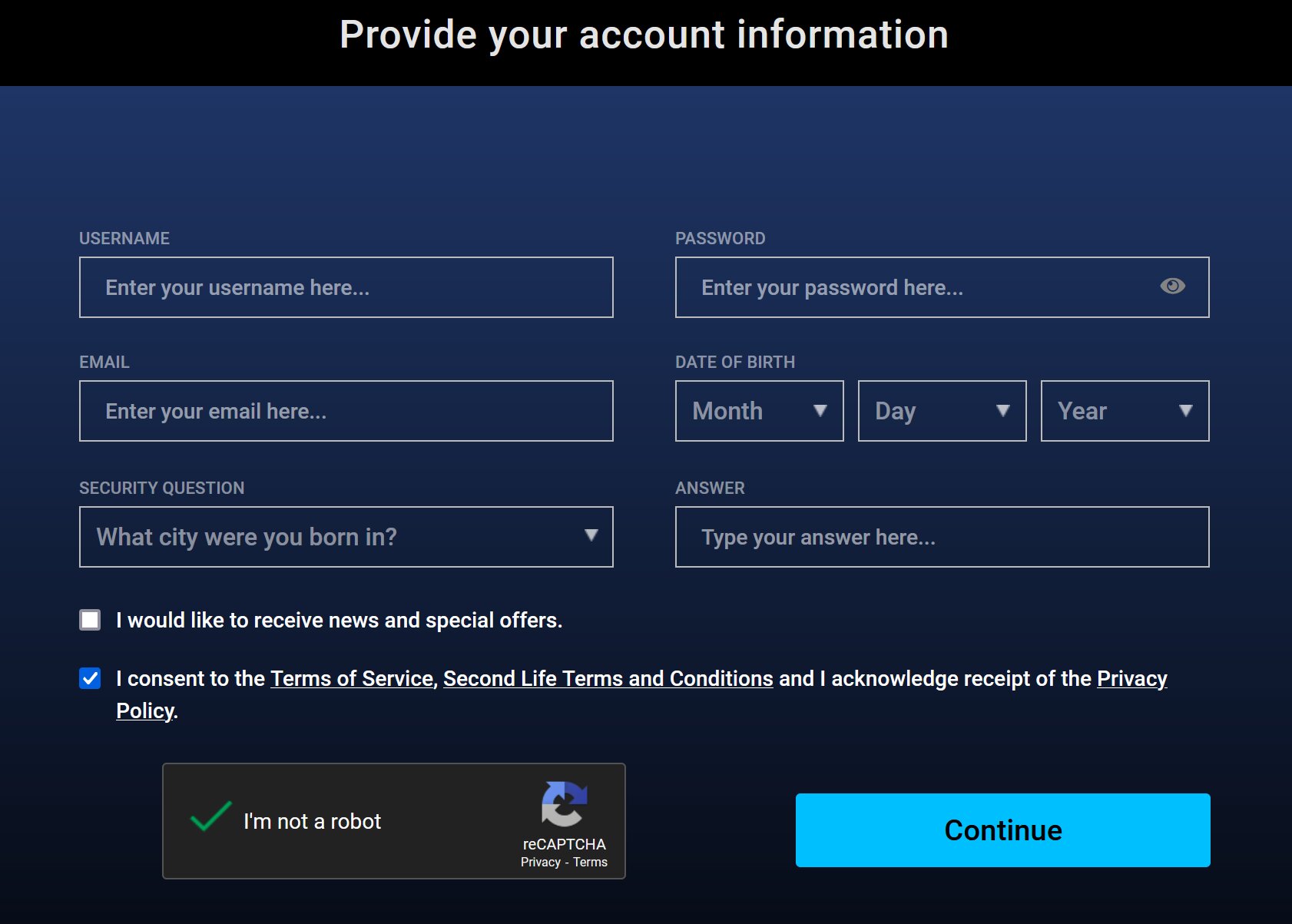
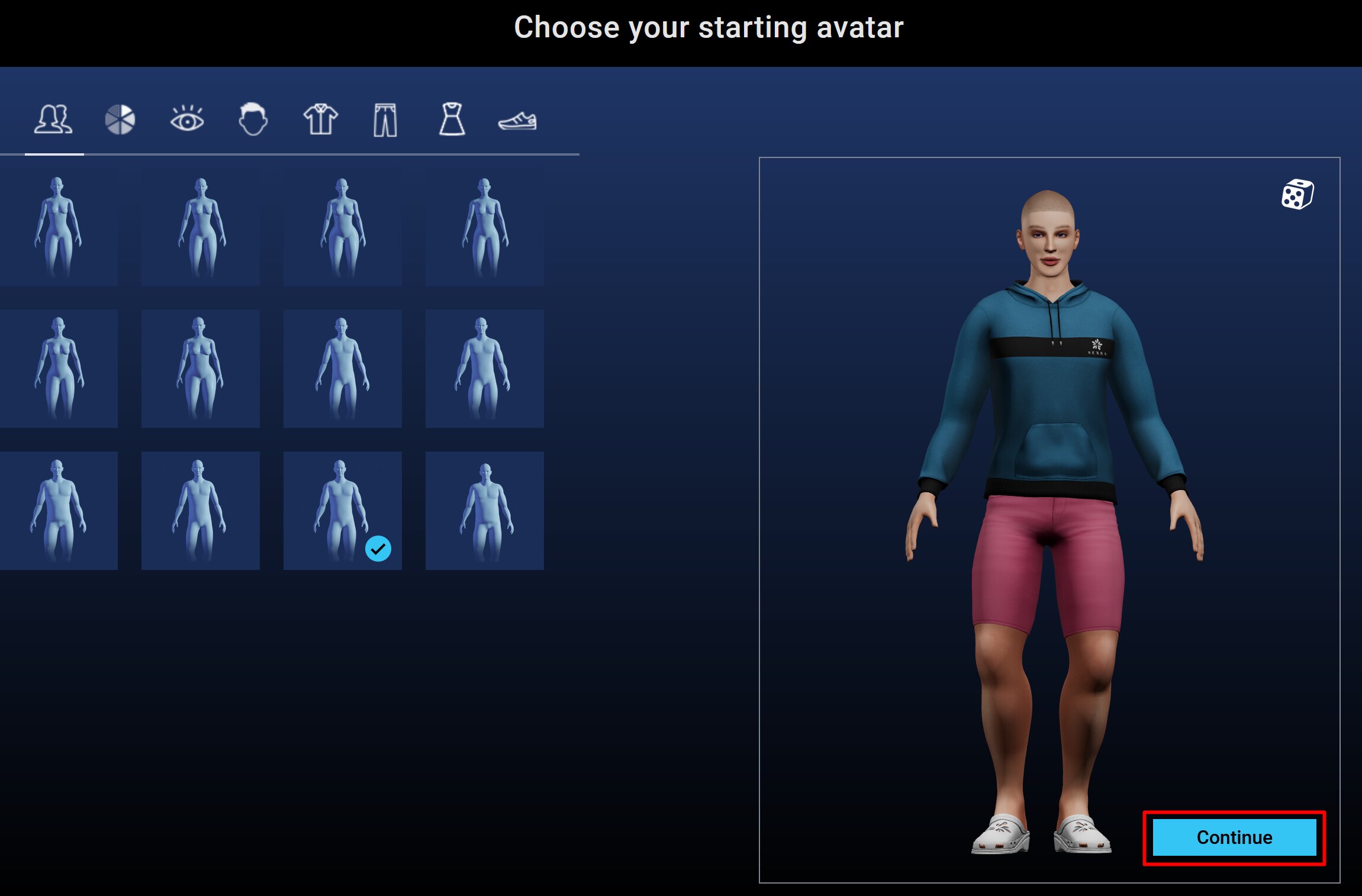
Once made, hit continue and make an avatar. You probably won't use this for very long, so don't worry about your appearance too much.
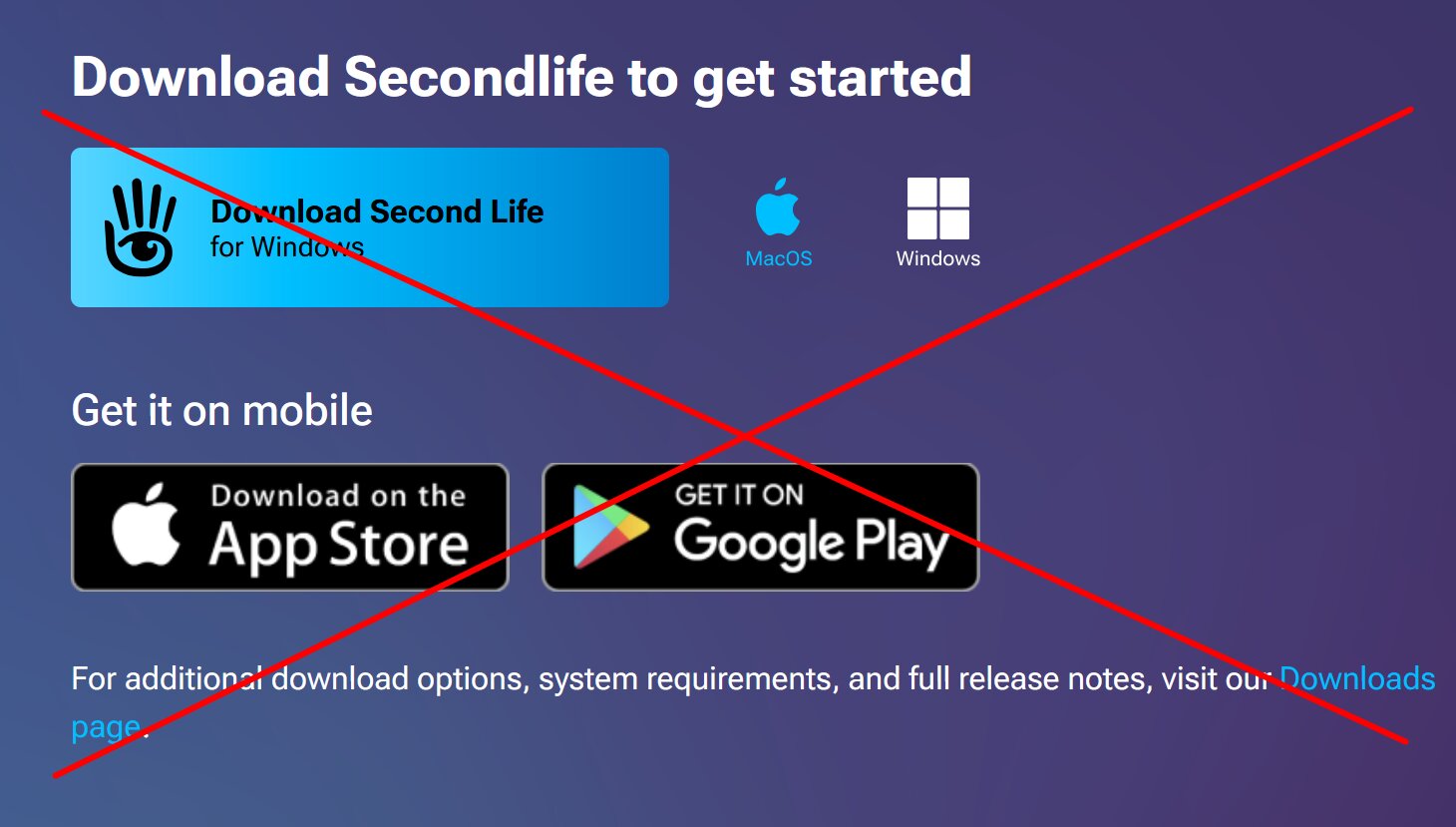
Once your account is created, it will take you to a download page. Do not download the default SL viewer! Second Life's default viewer has a number of optimization issues, and less features than fanmade viewers. For this tutorial, we will be using Firestorm instead.
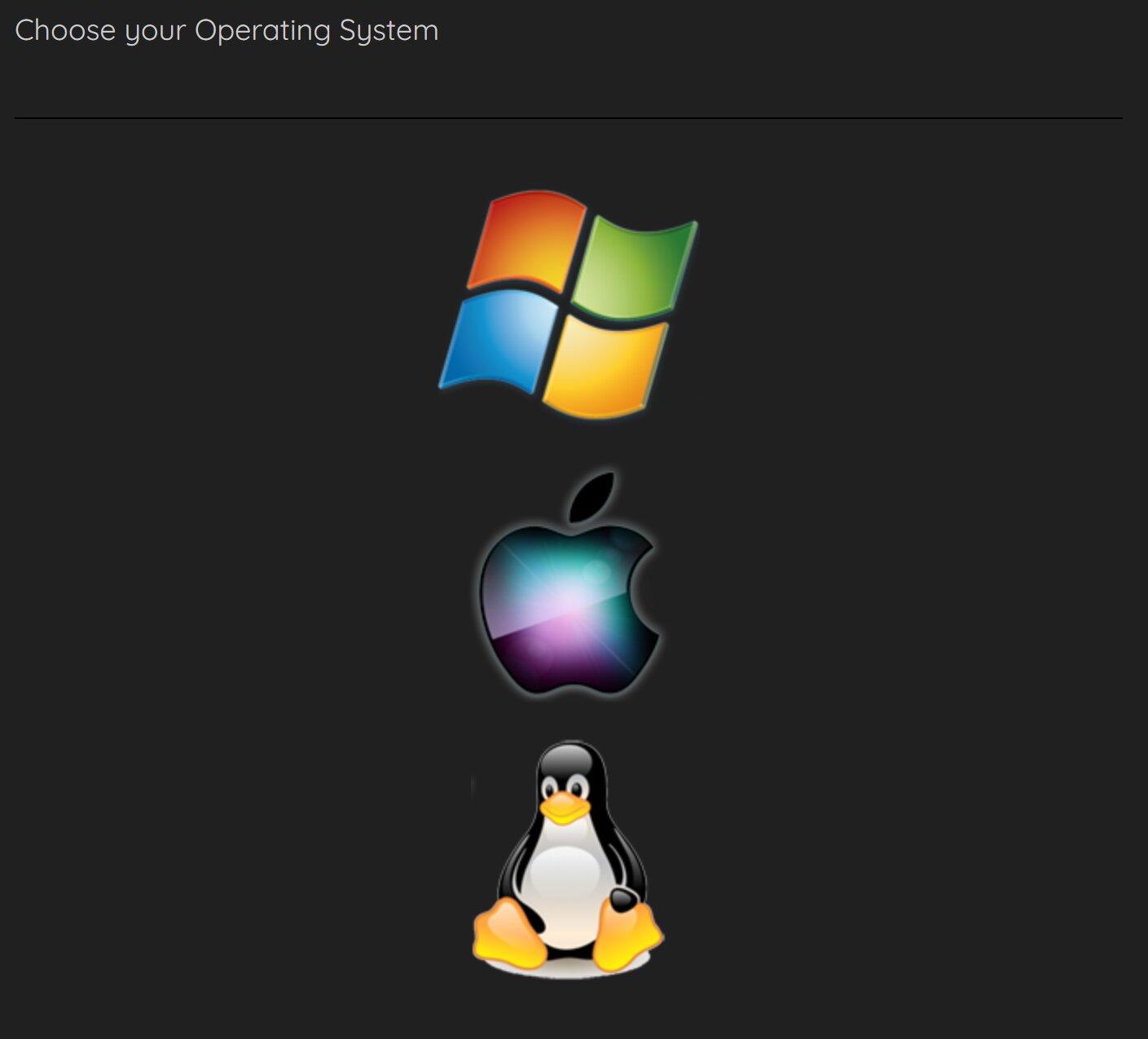
Go here and select your OS. This tutorial is being made on a Windows laptop, so setup required for a Mac or Linux PC aren't accounted for. All I can confirm is that many people use Firestorm on these operating systems. See here for MacOS help and here for Linux help.
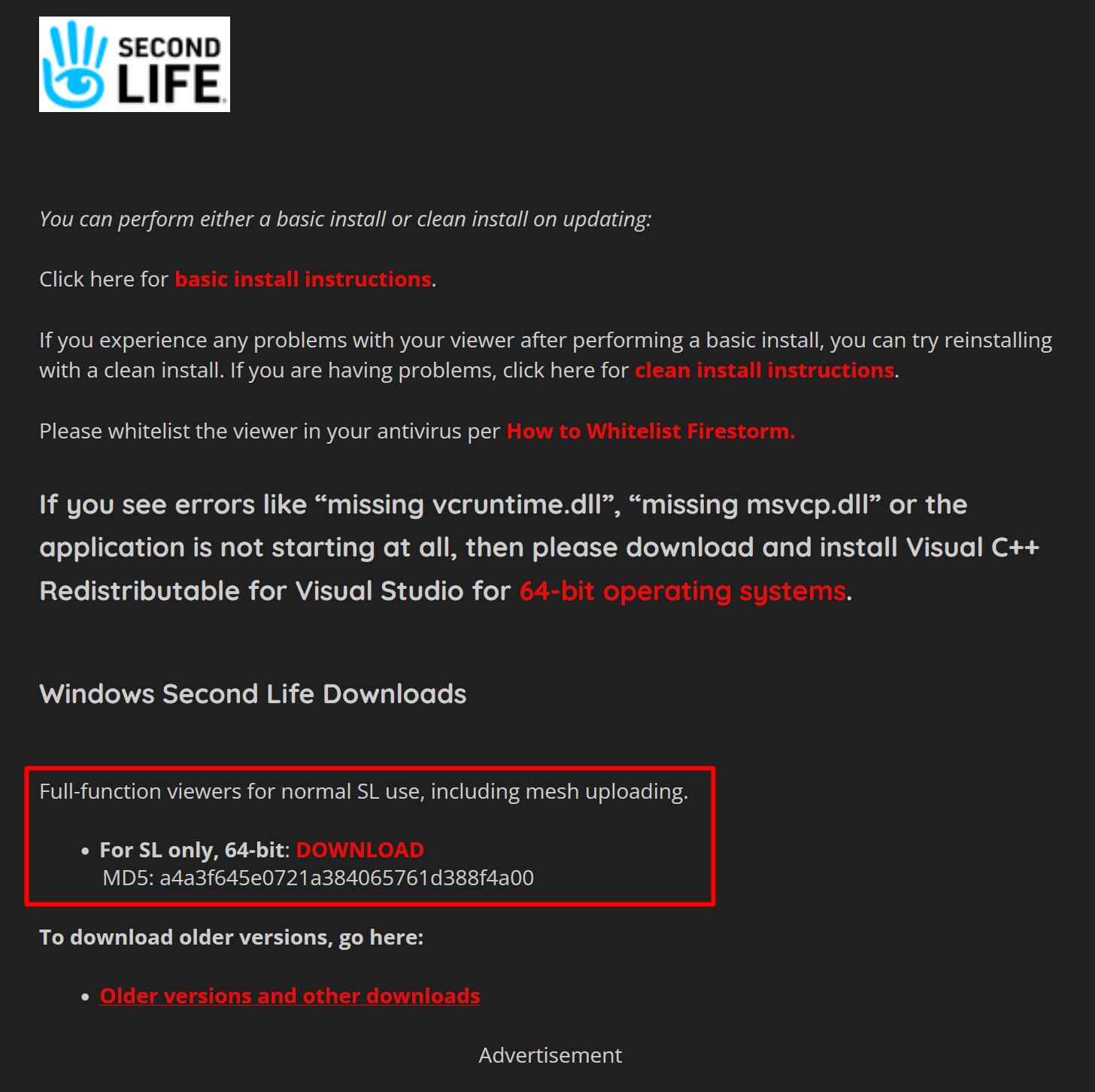
Scroll down to the area with the accurate download to your OS. For most modern Windows PCs, this will be the 64bit version. Download and install Firestorm, allowing it any permissions it requires. For example, it might ask about firewall for voice, so allow it to do so so you can voice chat in-world.
Once installed, boot up Firestorm, put in your login information, and login. Accept SL's terms and conditions and continue. You are now ready to play SL!
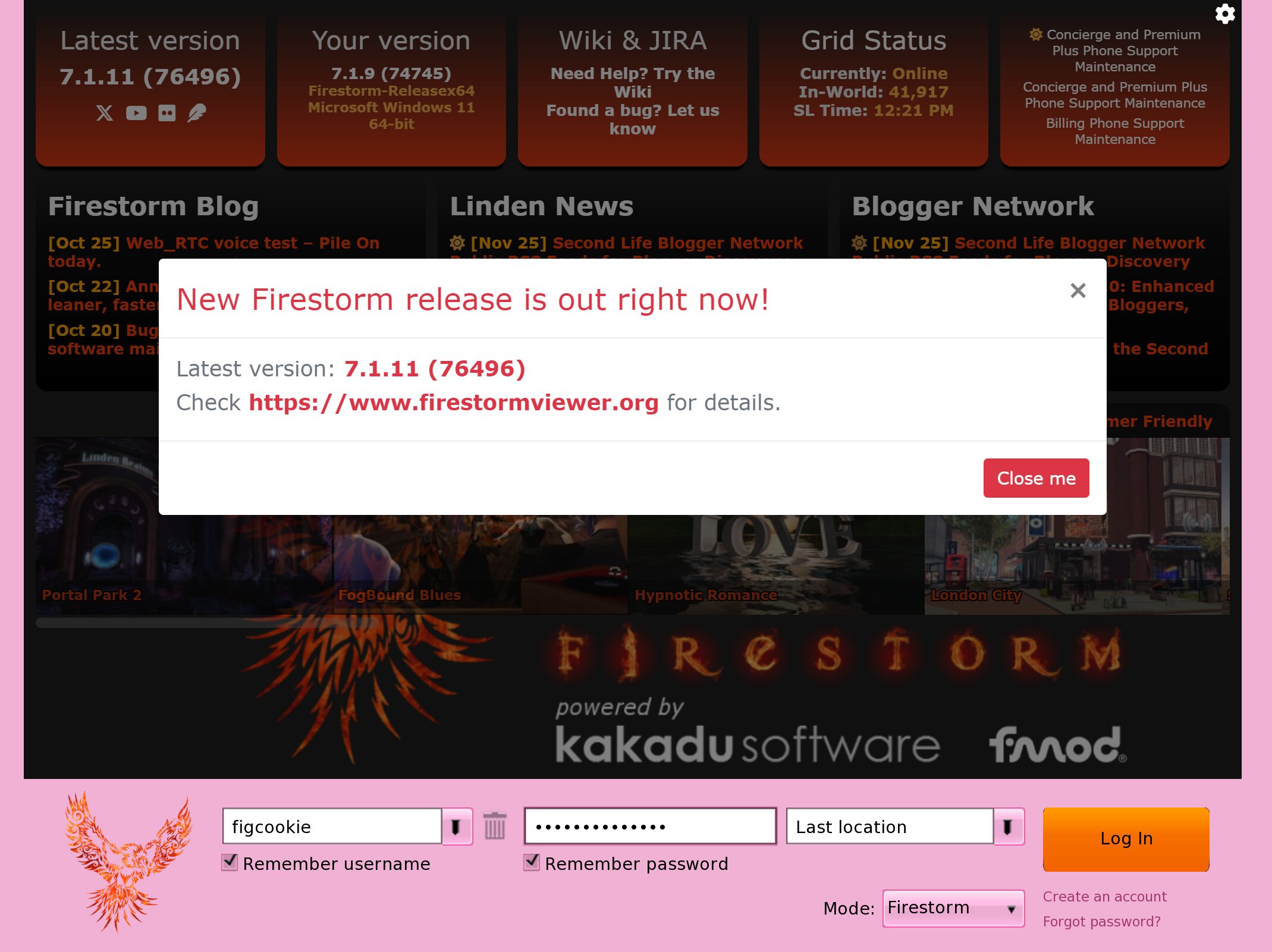
My Firestorm is pink, I will show you how to change that momentarily. It won't change much though.
HOME
Once made, hit continue and make an avatar. You probably won't use this for very long, so don't worry about your appearance too much.
Once your account is created, it will take you to a download page. Do not download the default SL viewer! Second Life's default viewer has a number of optimization issues, and less features than fanmade viewers. For this tutorial, we will be using Firestorm instead.
Go here and select your OS. This tutorial is being made on a Windows laptop, so setup required for a Mac or Linux PC aren't accounted for. All I can confirm is that many people use Firestorm on these operating systems. See here for MacOS help and here for Linux help.
Scroll down to the area with the accurate download to your OS. For most modern Windows PCs, this will be the 64bit version. Download and install Firestorm, allowing it any permissions it requires. For example, it might ask about firewall for voice, so allow it to do so so you can voice chat in-world.
Once installed, boot up Firestorm, put in your login information, and login. Accept SL's terms and conditions and continue. You are now ready to play SL!
My Firestorm is pink, I will show you how to change that momentarily. It won't change much though.
HOME
